

Minimalist FocusMinimalist Focus
  • Home
  • News
  • Entertainment
  • Fashion
  • Health
  • Tech
  • Tips
  • Travel
  • More
    • Culture
    • Design
    • Life
    • Work
Facebook Twitter Instagram
Minimalist FocusMinimalist Focus
  • Home
  • News
  • Entertainment
  • Fashion
  • Health
  • Tech
  • Tips
  • Travel
  • More
    • Culture
    • Design
    • Life
    • Work
Facebook Twitter Instagram
Minimalist FocusMinimalist Focus
Home»All»How to Take a Screenshot on iPad: A Comprehensive Guide for Every Model and iOS Version
All

How to Take a Screenshot on iPad: A Comprehensive Guide for Every Model and iOS Version

By KathyDecember 17, 2023Updated:March 23, 20243 Mins Read
Facebook Twitter Pinterest LinkedIn Reddit Telegram WhatsApp Email
How to Take a Screenshot on iPad A Comprehensive Guide for Every Model and iOS Version
Share
Facebook Twitter LinkedIn Pinterest Reddit Telegram WhatsApp Email

In the world of iPads, capturing what’s on your screen can be incredibly useful for various purposes, from saving memorable moments to sharing important information. Fortunately, taking a screenshot on an iPad is a straightforward process. Whether you own the latest iPad Pro or an earlier model running on iOS 12 or later, here’s a detailed guide on how to capture your screen effortlessly.

Why Take a Screenshot on iPad?
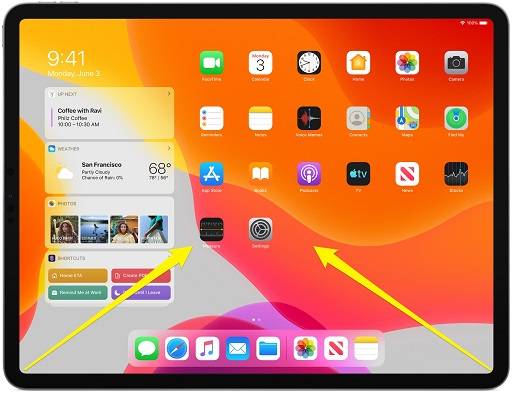
Why Take a Screenshot on iPad

Screenshots serve multiple purposes:

  • Saving vital information like receipts, web pages, or notes.
  • Capturing moments in games or videos for sharing or remembering.
  • Troubleshooting purposes to share errors or bugs with support.
  • Sharing content on social media or messaging platforms.

How to Take a Screenshot on Different iPad Models

iPad Pro with Face ID (11-inch or 12.9-inch)

  • Press Buttons Simultaneously: Quickly press and release the Side Button and Volume Up button together.
  • Find the Screenshot: Locate the thumbnail in the bottom left corner; tap it to edit or share.

iPad with Home Button (e.g., iPad Air, iPad Mini)

  • Press Buttons Simultaneously: Simultaneously press the Home Button and the Top (or Side) Button.
  • Access the Screenshot: Find the thumbnail in the bottom left and tap to edit or share.

Using AssistiveTouch to Capture Screenshots
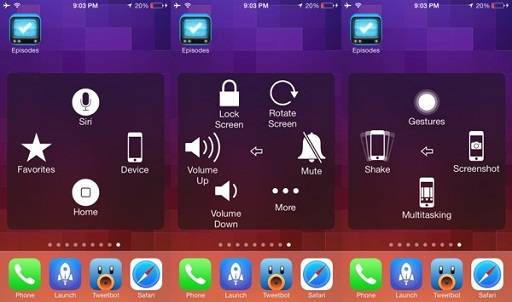
Using AssistiveTouch to Capture Screenshots

  • Enable AssistiveTouch: Go to Settings > Accessibility > Touch > AssistiveTouch, and toggle it on.
  • Take a Screenshot: Tap the AssistiveTouch icon > Device > More > Screenshot.

Finding and Editing Screenshots

  • Locate in Photos App: All screenshots are saved in the “Screenshots” album in the Photos app.
  • Edit Screenshots: Tap the screenshot, then tap “Edit” to crop, annotate, or add text.

Troubleshooting Screenshot Issues

  • Storage Full?: Clear up space by deleting unnecessary files or transferring them to iCloud.
  • Noisy Screenshots?: Mute your iPad to silence the camera shutter sound.

Related Post:

Online Gaming Strategy: A Comprehensive Guide To Strategic Gameplay

What Is RTP Gaming: Find Out How Game Return Winnings to a Player

Jesse Stone Movies in Order: The Complete Guide to Watching the Series

Knock at the Cabin Showtimes: Your Guide to Catching the Movie

Capturing Screenshots in Specific Apps

  • In Safari: Capture an entire webpage by taking a screenshot and selecting “Full Page”.
  • In Files App: Press and hold the file, select “Share,” and choose “Markup” to annotate it.

Tips for Sharing Screenshots

  • Share Instantly: Tap the thumbnail after capturing to share directly.
  • Use Markup Tools: Annotate and highlight areas before sharing.
  • Sharing Options: Utilize AirDrop, Messages, Mail, or social media apps to share.

Mastering the art of taking screenshots on your iPad can greatly enhance your user experience. Whether it’s for personal use, troubleshooting, or sharing information, the ability to capture what’s on your screen opens up a world of possibilities. Experiment with these methods on your specific iPad model and explore the various ways to utilize and share your screenshots seamlessly.

Share. Facebook Twitter Pinterest LinkedIn Reddit Telegram WhatsApp Email
Previous ArticleJesse Stone Movies in Order: The Complete Guide to Watching the Series
Next Article Guide on How to Play Online Game on W88 for Beginners
Kathy

Meet Kathy, the mindful mind behind the words at minimalistfocus.com. With an innate ability to distill the essence of life down to its purest form, Kathy's writing resonates with those seeking clarity in a cluttered world.

Related Post

Digital Minimalism: How to Declutter Apps, Reduce Screen Time, and Simplify Your Digital Life

February 21, 2026

Walmart Hidden Clearance Today: How to Find Secret Deals Walmart Doesn’t Advertise (Updated Daily)

February 10, 2026

Bringing it Down to Basics: Here Are the Key Elements of Any Safe Online Sports and Digital Gaming Platform

January 2, 2026

Most Popular

Home improvement

Uncover How Early Septic System Treatment Prevents Drain Field Failure

By KathyMarch 30, 2026

There’s a graveyard of good intentions buried in backyards across the country, thousands of drain…

Specifics of relocating a retail shop

March 28, 2026

Why Most Car Accident Claims Are Undervalued (And What to Do About It)

March 24, 2026

Elevating The Subterranean Experience Through Luxury Basement Finishing

March 21, 2026
Our Picks

The Ultimate Guide to Taking a Bus to KL

April 23, 2026

Telegram in 2026: A New Era of Digital Communication.

April 21, 2026

What You Actually Need from an XRP Wallet App

April 20, 2026

Top Picks

5 Unique Applications of Sandstone in Contemporary Homes

April 3, 2026

A Beginner’s Guide to Finding the Right Home in Mexico

April 2, 2026

How Construction Companies Use Resource Management Software?

April 1, 2026

Subscribe to Updates

Get the latest creative news from Minimalistfocus about Business, Travel, Tips and More.

  • About Us
  • Archives
  • Contact US
  • Privacy Policy
Minimalistfocus.com © 2026 All Right Reserved

Type above and press Enter to search. Press Esc to cancel.