

Minimalist FocusMinimalist Focus
  • Home
  • News
  • Entertainment
  • Fashion
  • Health
  • Tech
  • Tips
  • Travel
  • More
    • Culture
    • Design
    • Life
    • Work
Facebook Twitter Instagram
Minimalist FocusMinimalist Focus
  • Home
  • News
  • Entertainment
  • Fashion
  • Health
  • Tech
  • Tips
  • Travel
  • More
    • Culture
    • Design
    • Life
    • Work
Facebook Twitter Instagram
Minimalist FocusMinimalist Focus
Home»All»How to Take a Screenshot on iPad: A Comprehensive Guide for Every Model and iOS Version
All

How to Take a Screenshot on iPad: A Comprehensive Guide for Every Model and iOS Version

By KathyDecember 17, 2023Updated:March 23, 20243 Mins Read
Facebook Twitter Pinterest LinkedIn Reddit Telegram WhatsApp Email
How to Take a Screenshot on iPad A Comprehensive Guide for Every Model and iOS Version
Share
Facebook Twitter LinkedIn Pinterest Reddit Telegram WhatsApp Email

In the world of iPads, capturing what’s on your screen can be incredibly useful for various purposes, from saving memorable moments to sharing important information. Fortunately, taking a screenshot on an iPad is a straightforward process. Whether you own the latest iPad Pro or an earlier model running on iOS 12 or later, here’s a detailed guide on how to capture your screen effortlessly.

Why Take a Screenshot on iPad?
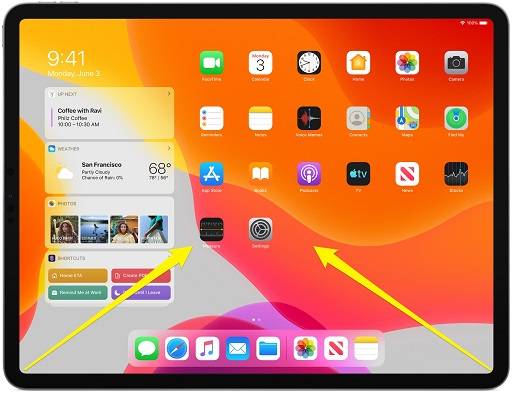
Why Take a Screenshot on iPad

Screenshots serve multiple purposes:

  • Saving vital information like receipts, web pages, or notes.
  • Capturing moments in games or videos for sharing or remembering.
  • Troubleshooting purposes to share errors or bugs with support.
  • Sharing content on social media or messaging platforms.

How to Take a Screenshot on Different iPad Models

iPad Pro with Face ID (11-inch or 12.9-inch)

  • Press Buttons Simultaneously: Quickly press and release the Side Button and Volume Up button together.
  • Find the Screenshot: Locate the thumbnail in the bottom left corner; tap it to edit or share.

iPad with Home Button (e.g., iPad Air, iPad Mini)

  • Press Buttons Simultaneously: Simultaneously press the Home Button and the Top (or Side) Button.
  • Access the Screenshot: Find the thumbnail in the bottom left and tap to edit or share.

Using AssistiveTouch to Capture Screenshots
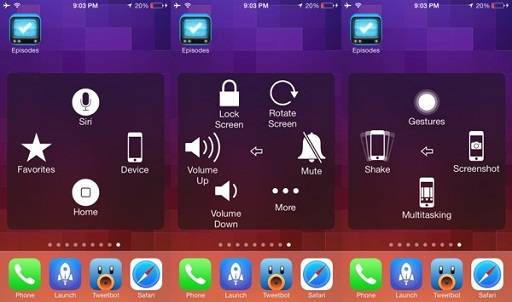
Using AssistiveTouch to Capture Screenshots

  • Enable AssistiveTouch: Go to Settings > Accessibility > Touch > AssistiveTouch, and toggle it on.
  • Take a Screenshot: Tap the AssistiveTouch icon > Device > More > Screenshot.

Finding and Editing Screenshots

  • Locate in Photos App: All screenshots are saved in the “Screenshots” album in the Photos app.
  • Edit Screenshots: Tap the screenshot, then tap “Edit” to crop, annotate, or add text.

Troubleshooting Screenshot Issues

  • Storage Full?: Clear up space by deleting unnecessary files or transferring them to iCloud.
  • Noisy Screenshots?: Mute your iPad to silence the camera shutter sound.

Related Post:

Online Gaming Strategy: A Comprehensive Guide To Strategic Gameplay

What Is RTP Gaming: Find Out How Game Return Winnings to a Player

Jesse Stone Movies in Order: The Complete Guide to Watching the Series

Knock at the Cabin Showtimes: Your Guide to Catching the Movie

Capturing Screenshots in Specific Apps

  • In Safari: Capture an entire webpage by taking a screenshot and selecting “Full Page”.
  • In Files App: Press and hold the file, select “Share,” and choose “Markup” to annotate it.

Tips for Sharing Screenshots

  • Share Instantly: Tap the thumbnail after capturing to share directly.
  • Use Markup Tools: Annotate and highlight areas before sharing.
  • Sharing Options: Utilize AirDrop, Messages, Mail, or social media apps to share.

Mastering the art of taking screenshots on your iPad can greatly enhance your user experience. Whether it’s for personal use, troubleshooting, or sharing information, the ability to capture what’s on your screen opens up a world of possibilities. Experiment with these methods on your specific iPad model and explore the various ways to utilize and share your screenshots seamlessly.

Share. Facebook Twitter Pinterest LinkedIn Reddit Telegram WhatsApp Email
Previous ArticleJesse Stone Movies in Order: The Complete Guide to Watching the Series
Next Article Guide on How to Play Online Game on W88 for Beginners
Kathy

Meet Kathy, the mindful mind behind the words at minimalistfocus.com. With an innate ability to distill the essence of life down to its purest form, Kathy's writing resonates with those seeking clarity in a cluttered world.

Related Post

What Is a Refraction Eye Exam? Purpose, Procedure, and What to Expect

September 23, 2026

Splint for De Quervain’s Tenosynovitis: Types, Benefits, and How to Wear One

September 18, 2026

The Death of the Dialogue Tree: How AI is changing NPC conversations forever.

June 12, 2026

Most Popular

Home improvement

How Window Installation Services Can Boost Your Home’s Value

By BrianSeptember 9, 2026

Key Takeaways Energy-efficient windows can lead to reduced utility expenses by as much as 25%.…

What goes with the Hummus? What do you eat with hummus?

September 9, 2026

How to Whiten Your Teeth With Braces Safely: Best Tips & Methods 

September 9, 2026

How Superfood Toppings Can Upgrade Your Daily Breakfast Bowl

September 9, 2026
Our Picks

Emergency Dentist Near Me: When to Seek Urgent Dental Care

October 13, 2026

How to Measure Ring Size at Home: Simple Methods and Size Guide 

October 12, 2026

Pillar & Geometric Candle Molds

October 5, 2026

Top Picks

How Residential Landscaping Can Improve Your Home and Outdoor Living Space

September 16, 2026

Why a Whole House Water Softener Is a Smart Investment for Your Home

September 16, 2026

Why Does My Engine Sound Loud? Common Causes, Symptoms & Fixes

September 15, 2026

Subscribe to Updates

Get the latest creative news from Minimalistfocus about Business, Travel, Tips and More.

  • About Us
  • Archives
  • Contact US
  • Privacy Policy
Minimalistfocus.com © 2026 All Right Reserved

Type above and press Enter to search. Press Esc to cancel.