


Minimalist FocusMinimalist Focus
  • Home
  • News
  • Entertainment
  • Fashion
  • Health
  • Tech
  • Tips
  • Travel
  • More
    • Culture
    • Design
    • Life
    • Work
Facebook Twitter Instagram
Minimalist FocusMinimalist Focus
  • Home
  • News
  • Entertainment
  • Fashion
  • Health
  • Tech
  • Tips
  • Travel
  • More
    • Culture
    • Design
    • Life
    • Work
Facebook Twitter Instagram
Minimalist FocusMinimalist Focus
Home»All»How to Reset AirPods: A Comprehensive Guide to Troubleshooting and Resolving Common Issues
All

How to Reset AirPods: A Comprehensive Guide to Troubleshooting and Resolving Common Issues

By KathyDecember 10, 2023Updated:May 21, 20258 Mins Read
Facebook Twitter Pinterest LinkedIn Reddit Telegram WhatsApp Email
how to reset airpods
Share
Facebook Twitter LinkedIn Pinterest Reddit Telegram WhatsApp Email

In the fast-paced world of wireless technology, Apple’s AirPods have become an indispensable accessory for many, offering seamless connectivity, crystal-clear audio, and convenient portability. However, despite their advanced features, AirPods, like any electronic device, may encounter occasional glitches or connectivity issues that can disrupt your listening experience. Whether it’s sudden drops in audio quality, intermittent connection drops, or difficulties with pairing, these issues can be frustrating to deal with.

Understanding the Need for a Reset:

Before we delve into the reset process, let’s explore why a reset might be necessary. AirPods, like any electronic device, can encounter issues such as connectivity problems, audio glitches, or unresponsiveness. These issues may arise due to software bugs, conflicting settings, or corrupted firmware. A reset serves as a troubleshooting method to address these issues and restore your AirPods to optimal functionality. It essentially clears any temporary data or misconfigurations that might be causing the problems, allowing the AirPods to start afresh. This process can often resolve issues that are not easily fixed through other means, providing a quick and effective solution to common problems encountered with wireless earbuds.

Step-by-Step Guide to Resetting AirPods:

Follow these simple steps to reset your AirPods:

Ensure AirPods are in the Case:

Open the charging case lid carefully, ensuring that it opens smoothly without any sudden movements. This will prevent any accidental damage to the lid or the AirPods inside.

Next, delicately remove both AirPods from your ears and place them securely inside the charging case. Make sure they are properly aligned with the designated slots within the case to ensure efficient charging and protection against any potential damage.

Locate the Setup Button:

On the back of the charging case, you’ll find the small button labeled “Setup” or “Pairing.” This button serves as a key component in initializing the connection process between your device and the wireless earbuds. Its location may vary slightly depending on the brand and model of your earbuds, but it’s commonly positioned near the charging port or along the back edge of the case.

Step by Step Guide to Resetting AirPods

Pressing this button initiates the pairing mode, enabling your earbuds to be discovered by nearby Bluetooth-enabled devices such as smartphones, tablets, or computers. Once in pairing mode, the earbuds emit a signal that allows them to be detected by your device’s Bluetooth settings.

Press and Hold the Setup Button:

Press and hold the Setup button, typically located on the back of the AirPods case, for at least 15 seconds. Ensure that you maintain firm pressure on the button throughout this time period. This action initiates the reset process for your AirPods.

While holding down the Setup button, observe the status light on the AirPods case. Initially, the status light may illuminate, indicating that the AirPods are powered on. However, continue holding the button until the status light begins to flash amber.

Reconnect to Your Devices:

Once the reset is complete, reconnect your AirPods to your devices by placing them near the device and following the on-screen prompts. This typically involves accessing the Bluetooth settings on your device, selecting the AirPods from the list of available devices, and confirming the connection. Ensure that your AirPods are sufficiently charged before attempting to reconnect them, as low battery levels might impede the pairing process. Additionally, make sure that both the AirPods and the device you’re pairing them with have Bluetooth enabled and are within close proximity to each other to ensure a smooth and successful reconnection. If you encounter any difficulties during the pairing process, refer to the manufacturer’s troubleshooting guide or contact customer support for assistance.

Common Issues Resolved by Resetting AirPods:

A reset can address various common issues, including:

Connectivity Problems:

Resolve issues with connecting to your devices by employing a systematic troubleshooting approach tailored to your specific situation. Begin by ensuring that all cables are securely connected and that the device is powered on. Next, check for any software updates or driver installations that may be necessary for proper connectivity. If the issue persists, consider restarting both the device and the connecting hardware, such as routers or modems.

Additionally, verify that the correct network settings are configured, including Wi-Fi passwords and IP addresses. If using Bluetooth, ensure that both devices are within range and that there are no obstructions interfering with the signal. For wired connections, inspect cables for any signs of damage and try using different ports if available.

Audio Glitches:

Fix problems such as distorted audio or one AirPod not working can often be resolved through several troubleshooting steps. Firstly, ensure that both AirPods are clean and free from debris, as this can sometimes cause audio issues. Cleaning them gently with a soft, dry cloth can help.
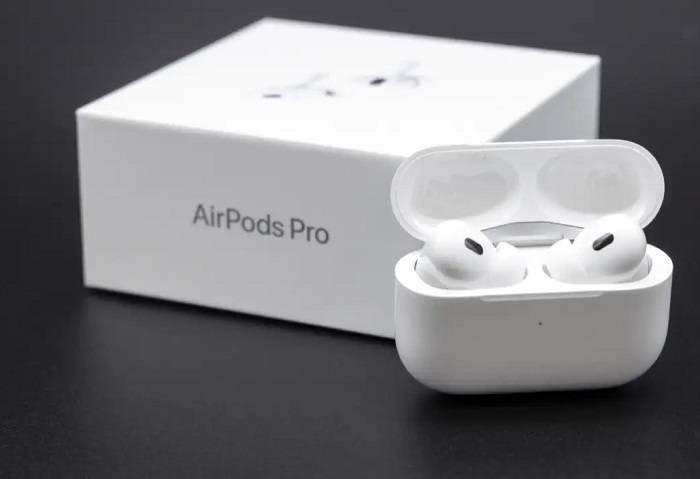
Common Issues Resolved by Resetting AirPods

If the problem persists, try resetting your AirPods. To do this, place both AirPods in their charging case and keep the lid open. Press and hold the setup button on the back of the case until the status light flashes amber a few times, then flashes white. Close the lid and wait for about 15 seconds before reopening it to reconnect your AirPods.

Pairing Difficulties:

Overcoming challenges when pairing AirPods with new devices can often involve troubleshooting common issues that may arise during the connection process. One challenge users might face is ensuring that both the AirPods and the device they’re attempting to pair with have sufficient battery life. If either the AirPods or the device are running low on power, it can hinder the pairing process or cause disconnections.

Another challenge is ensuring that the AirPods are in pairing mode. Sometimes, AirPods may not enter pairing mode automatically, especially if they’ve been previously paired with another device. In such cases, manually entering pairing mode by holding the setup button on the AirPods case can resolve the issue.

Related Post:

A Guide to Land Clearing for Property Development by Demolition Contractors in Los Angeles

Telf AG – the virtual world of real management

The Significance of Regular House Washing: Safeguarding Your Investment, Elevating Property Value, and Enhancing Curb Appeal

 Leslie Jordan Movies and TV Shows: A Comprehensive Guide to the Iconic Actor’s Career

Tips to Avoid Common Issues:

Preventive measures can help avoid encountering problems with your AirPods:

Keep Firmware Updated:

Regularly check for and install firmware updates for your AirPods to ensure optimal performance and take advantage of new features or improvements released by Apple. Firmware updates can enhance connectivity, battery life, audio quality, and overall functionality of your AirPods. These updates are typically delivered wirelessly through your connected Apple device, such as an iPhone or iPad, and can be easily installed with a few simple steps. Keeping your AirPods up to date with the latest firmware not only enhances their performance but also helps in maintaining compatibility with other Apple devices and services. Additionally, firmware updates may address any potential security vulnerabilities, providing you with a more secure and reliable audio experience.

Clean AirPods Regularly:

Remove earwax or debris from the speaker grills to maintain optimal audio quality. Accumulation of such particles can not only muffle sound but also potentially damage the speakers over time. Regular cleaning of speaker grills helps ensure clear and crisp sound output, prolonging the lifespan of your audio equipment. Use a soft brush or a specialized cleaning tool to gently dislodge any buildup, being careful not to push debris further into the speakers. Additionally, consider using protective covers or cases to prevent foreign objects from entering the speaker grills in the first place, thus reducing the need for frequent cleaning and preserving audio quality for longer periods.

Store in a Protective Case:

Use a protective case to shield your AirPods from physical damage and environmental factors. A durable case not only safeguards your AirPods against accidental drops, scratches, and bumps but also provides protection from moisture, dust, and other potential hazards. Additionally, investing in a case with a secure closure mechanism ensures that your AirPods stay securely in place when not in use, reducing the risk of loss or damage. With a wide range of styles and materials available, you can choose a case that suits your preferences while providing the necessary defense for your AirPods, extending their lifespan and maintaining their pristine condition for longer periods.

By following the steps outlined in this guide, you can easily reset your AirPods and troubleshoot common issues. Remember to stay proactive by keeping your firmware updated and maintaining your AirPods to ensure a seamless and enjoyable audio experience. If problems persist after a reset, it may be advisable to contact Apple Support for further assistance.

Share. Facebook Twitter Pinterest LinkedIn Reddit Telegram WhatsApp Email
Previous ArticleSpidey and His Amazing Friends: Exploring the Adventures of Marvel’s Web-Slinging Trio
Next Article Chris from Mr. Beast: The Unsung Hero Behind the Scenes
Kathy

Meet Kathy, the mindful mind behind the words at minimalistfocus.com. With an innate ability to distill the essence of life down to its purest form, Kathy's writing resonates with those seeking clarity in a cluttered world.

Related Post

Digital Minimalism: How to Declutter Apps, Reduce Screen Time, and Simplify Your Digital Life

February 21, 2026

Walmart Hidden Clearance Today: How to Find Secret Deals Walmart Doesn’t Advertise (Updated Daily)

February 10, 2026

Bringing it Down to Basics: Here Are the Key Elements of Any Safe Online Sports and Digital Gaming Platform

January 2, 2026

Most Popular

Home improvement

Uncover How Early Septic System Treatment Prevents Drain Field Failure

By KathyMarch 30, 2026

There’s a graveyard of good intentions buried in backyards across the country, thousands of drain…

Specifics of relocating a retail shop

March 28, 2026

Why Most Car Accident Claims Are Undervalued (And What to Do About It)

March 24, 2026

Elevating The Subterranean Experience Through Luxury Basement Finishing

March 21, 2026
Our Picks

The Ultimate Guide to Taking a Bus to KL

April 23, 2026

Telegram in 2026: A New Era of Digital Communication.

April 21, 2026

What You Actually Need from an XRP Wallet App

April 20, 2026

Top Picks

5 Unique Applications of Sandstone in Contemporary Homes

April 3, 2026

A Beginner’s Guide to Finding the Right Home in Mexico

April 2, 2026

How Construction Companies Use Resource Management Software?

April 1, 2026

Subscribe to Updates

Get the latest creative news from Minimalistfocus about Business, Travel, Tips and More.

  • About Us
  • Archives
  • Contact US
  • Privacy Policy
Minimalistfocus.com © 2026 All Right Reserved

Type above and press Enter to search. Press Esc to cancel.